This article is about showing how to create a .NET application to perform remote desktop operation using Microsoft Terminal Services Client ActiveX control.
 Is your email address OK? You are signed up for our newsletters but your email address is either unconfirmed, or has not been reconfirmed in a long time. Please click here to have a confirmation email sent so we can confirm your email address and start sending you newsletters again. Alternatively, you can update your subscriptions.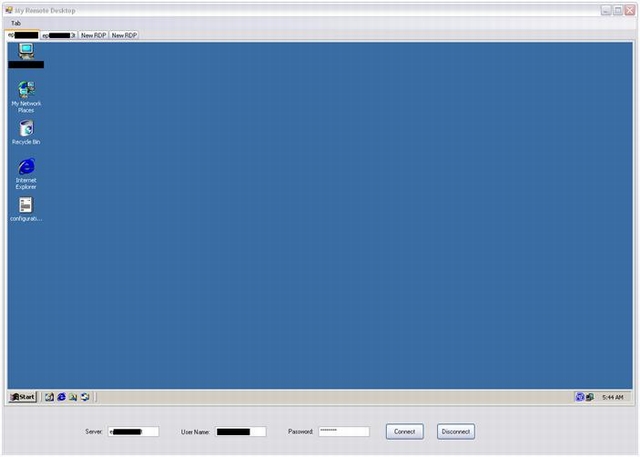
Introduction
Remote Desktop Services is one of Microsoft Windows components to access a remote computer through the network. Only the user interface of the application is presented at the client. Any input is redirected over to the remote computer over the network.At work, we use Remote Desktop a great deal. It allows us to login to a remote server to perform health checks, deploy applications, troubleshoot problems, etc. We also use remote desktop often when we do WFH (work from home).
Why do you want to write a .NET application to do this when you have the MS Terminal Services client available from OS? Well, consider if you want to work on 3 different application servers at the same time and want to toggle between these 3 servers quite often. With the MSTSC, we will be running 3 different clients for the 3 servers and it is difficult to manage the working environment. In .NET, you can develop an application with tab control to load remote desktop sessions in different tabs in one window.
Background
We will be usingAxMSTSCLib an ActiveX component in our program to connect to the remote computer. It’s not that hard to build a remote desktop application in .NET. Microsoft has a “Microsoft RDP client control” ActiveX control that we will be using in our application.This is How We Do It
We will start by creating a Windows application in the Visual Studio IDE.Add a reference to “Microsoft Terminal Services Control Type Library” from the COM tab. This will addMSTSCLib.dll to the project.
 To add MSTSC to the toolbox, right click the toolbox and select “Choose Items…”. Now add “Microsoft Terminal Services control from the COM tab.
 Drag the newly added control from toolbox to the form.
Add 3 textbox and 2 button controls to the form:

Connect Button - Click Event
Here is how we write the Connect button click event.Hide Copy Code
rdp.Server = txtServer.Text;
rdp.UserName = txtUserName.Text;
IMsTscNonScriptable secured = (IMsTscNonScriptable)rdp.GetOcx();
secured.ClearTextPassword = txtPassword.Text;
rdp.Connect();
Now assign the properties (Server, UserName) of RDP control with the textbox values.Here’s how easy it is to login to remote machine. However there is one catch, there is no direct method in RDP control through which you can pass the username and password to login to the remote desktop.
Due to security reasons, you have to implement an interface (
IMsTscNonScriptable) to cast it separately.Hide Copy Code
IMsTscNonScriptable secured = IMsTscNonScriptable)rdp.GetOcx();
secured.ClearTextPassword = txtPassword.Text;
Disconnect Button – Click Event
To disconnect from the remote desktop session, we just need to call theDisconnect() method.Before disconnecting, we want to ensure that the connection is still available. We don't want to disconnect if it is already disconnected (very clever, huh).
Hide Copy Code
if (rdp.Connected.ToString() == "1")
 rdp.Disconnect();
That’s all folks!History
- 5th November, 2009: Initial version
License
This article, along with any associated source code and files, is licensed under The Code Project Open License (CPOL)


0 comments:
Post a Comment
Note: only a member of this blog may post a comment.