You can track and manage case SLAs in Customer Service Hub.
Track SLA details with Timer control
You or the agent working on the case can see the SLA details on the case form.
Timer control for SLA-enabled entities
If your administrator has configured to display the statuses of the configured SLA KPIs by using the SLA Timer control subgrid, the following details are available:
- The different statuses that the KPIs go through are displayed.
- When a KPI nears compliance or noncompliance, the time ticker changes to show the time in hours, minutes, and seconds, as applicable.
- The icons are updated for the different stages that the KPIs go through.
- The KPIs are refreshed at the interval that you specify at the time of configuration.
The statuses and their corresponding symbols are as follows.


A sample runtime view of the SLA Timer is as follows.
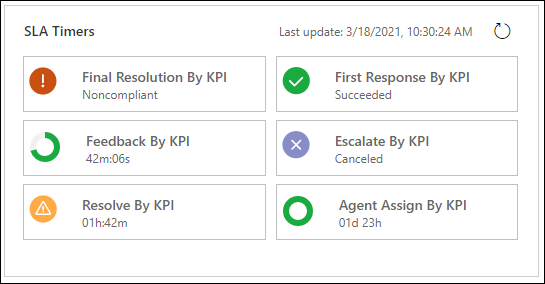
For SLAs that are in the expired status, your administrator can configure the SLA timer to display the elapsed time. The timer will display the countdown using a negative value in the red color. Only those SLA timers that have been configured to show the negative time will display the negative countdown time.

More information: Enable elapsed timer for SLA items in terminal or expired status
Case form with SLA applied
Only the failure time is tracked and saved on the case record. You can ask your system administrator or customizer to add a timer to the case form. Based on the business hours, the timer displays the time remaining to meet the SLA or the elapsed time since the SLA failed. For example, if failure time is set to 5 days and business hours are 9:00 a.m. to 5:00 p.m., then you will see 5 days on the timer. If failure time is set to 10 hours, then you will see 1 day and 2 hours on the timer.
Note
It is recommended to use only Enhanced SLA because Standard SLA is deprecated. For more information, see Important changes coming in Dynamics 365 Customer Service.
Case form with Enhanced SLA applied
When an enhanced SLA is applied to a case, a related SLA KPI Instance record is created for each SLA KPI that is tracked for that case. On the Summary tab of the case record, you’ll see a timer that shows the time remaining to meet each SLA KPI. When a service rep puts a case on hold, the status of the SLA KPI Instance is set to Paused. You can see the time for which a case was on hold and the last time the case was put on hold. These details are not available on the case form by default, but your system customizer can add these fields on the case form for you.
The on-hold time is the time for which the case was set to a status that you defined as an On-Hold status in the System settings dialog box. More information: System Settings dialog box - Service tab.
When the service rep resumes a case, the status of the SLA KPI Instance record is updated. The following details are updated in the record if the SLA isn’t violated:
- Failure time
- Warning time
- Total time the case is on hold
If the service rep puts the case on hold after the warning time, then the warning time isn’t updated when the case is resumed.
Similarly, the status of the SLA KPI instance is updated when the first response time on a case is:
- Nearing expiry
- Has expired
- Has succeeded
Note
- The SLA timer continues to run after it is triggered or resumed. It includes the holiday hours, non-business hours, and pause time (only business hours) while projecting the SLA warning or failure time.
- The timer control auto-refreshes for Pause and Resume states to show the updated SLA. For all other states, you must refresh the page to view the refreshed SLA. Select ... and select Refresh on the command bar to refresh the SLA timer control.
You can now also apply SLAs on demand. More information: Apply SLA on demand
To learn more about adding a timer control to a case form, see Add a timer control for SLA-enabled entities.
Apply a routing rule set
An active routing rule set is automatically applied to all automatically created cases. Perform the following steps to manually apply a routing rule to the existing or manually created cases:
- In Customer Service Hub, select Cases. The My Active Cases page appears.
- Select the cases for which you want to apply the routing rule, and on the command bar, select Apply Routing Rule. The routing rule will be applied for the selected cases.
Note
If you’re importing bulk records, and don’t want the routing rules to be applied to the cases that you’re importing, add a column Route Case to your spreadsheet, and add the value No for all the cases that you don’t want to route.
Use SLA on the Customer Service Hub records
Your system administrator can enable entities other than case for SLA. For the Customer Service Hub, the following other entities can be enabled for SLA:
Account
Contact
All activity entities: Email, Task, Appointment, Phone Call, Social Activity
All custom entities and activities
With this enhancement, you can define metrics or key performance indicators (KPIs) to meet the service level for these entity records.
Note
SLAs can only be created in the Dynamics 365 Customer Service. However, you can ask your system administrator or customizer to add a timer to your interactive experience forms to track the SLA KPI details in the Customer Service Hub.


0 comments:
Post a Comment
Note: only a member of this blog may post a comment.