Steps
1. Open your Visual Studio 2008 from Start Menu and create a new Asp.Net project. I have used C# as the language in this sample.
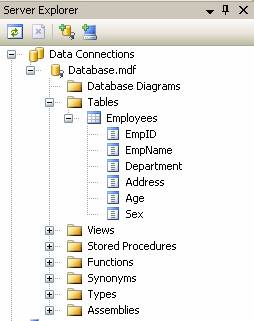
2. To understand this article, we will use a Sql Express database created in the App_Data folder in our solution. Add a new database using "Add New Item.." dialog box. Then, create a table called Employees with the necessary columns using the “Server Explorer”.
Refer the below figure,
3. Create an excel sheet with some sample Employee data to upload. Below is the excel sheet I have used in this example.
You can copy this excel sheet into the App_Data folder in visual studio solution.
With the above things in place, we will move forward and import the excel sheet data to Employees table using SqlBulkUpload class. To do this, drag a button control into your Default.aspx and name it as btnImport. On its Button click event,
Import Excel sheet into SqlServer Using C#
protected void btnImport_Click(object sender, EventArgs e)
{
using (OleDbConnection con = new OleDbConnection(ConfigurationManager.ConnectionStrings["ExcelCon"].ConnectionString))
{
con.Open();
OleDbCommand com = new OleDbCommand("Select * from [EmployeeInfo$]", con);
OleDbDataReader dr = com.ExecuteReader();
using (SqlConnection sqlcon = new SqlConnection(ConfigurationManager.ConnectionStrings["Sql"].ConnectionString))
{
sqlcon.Open();
using (SqlBulkCopy bulkCopy = new SqlBulkCopy(sqlcon))
{
bulkCopy.ColumnMappings.Add("[Employee Name]", "EmpName");
bulkCopy.ColumnMappings.Add("Department", "Department");
bulkCopy.ColumnMappings.Add("Address", "Address");
bulkCopy.ColumnMappings.Add("Age", "Age");
bulkCopy.ColumnMappings.Add("Sex", "Sex");
bulkCopy.DestinationTableName = "Employees";
bulkCopy.WriteToServer(dr);
}
}
dr.Close();
dr.Dispose();
}
Response.Write("Upload Successfull!");
}
Connection String
<add name="ExcelCon" connectionString="Provider=Microsoft.ACE.OLEDB.12.0;Data Source=|DataDirectory|NewEmployees.xlsx;Extended Properties=Excel 12.0"/>
<add name="Sql" connectionString="Data Source=.\SQLEXPRESS;AttachDbFilename=|DataDirectory|Database.mdf;Integrated Security=True;User Instance=True;"/>
The above code will read the excel content using OleDbDataReader and will do a bulk upload to Employees table using SqlBulkCopy.WriteToServer() method. You need to include System.Data.OleDb and using System.Data.SqlClient namespace for the above code to work. We can also set batch size and upload timeout in case of large volume of data using SqlBulkCopy class. You can read my previous article to know more.
|
|
Downloads
Conclusion
Importing excel sheet data to Sql server is one of the most common task we will get in most of the projects. There are numerous ways to do this, like reading the excel sheet and inserting it to Sql table by constructing insert queries. But, this approach is not that efficient where an insert query is fired for every row. Thus, in this article we have understood using the SqlBulkCopy class for efficiently uploading the excel data which does the task at a shot. Check out the Excel dashboards at iDashboards.com if you're looking for new ways to further display or manipulate that data.
Download the source attached with this article and see it in action.
|
| 



0 comments:
Post a Comment
Note: only a member of this blog may post a comment.