Abstract:
Every originization always hunting quality resources for project development.so every interview round there is always technical round. To check the technical knowledge .some times logical question are asked .one of my firend asked one question.so I m thinking write article and share with all of you.
Problem statement:
Without writing one line of code do the following task
bind student_ id to dropdownlist .display details of student in gridview as per student _id of dropdownlist in ASP.Net?
Note: Problem statement was very complicated,but I write is easy way.
Solution:
So many times programmer are confused how it is possible to without write one line of code.some are says it is impossible to do without write one line of code.some are know only bind data to control using data souce.but don’t know how we check as per condition?.
It is possible in ASP.Net .
Lets learn step by step .
Step 1:
Open Visual studio .Click on File->New ->Website.
Step 2:
Select language as Visual c# and template as ASP.NET web Forms site.give appopriate name and location and click on ok.

Step 3:
Drag and drop Dropdownlist on page . check the “Enable Autopostback”. for binding data source select choose data souce.
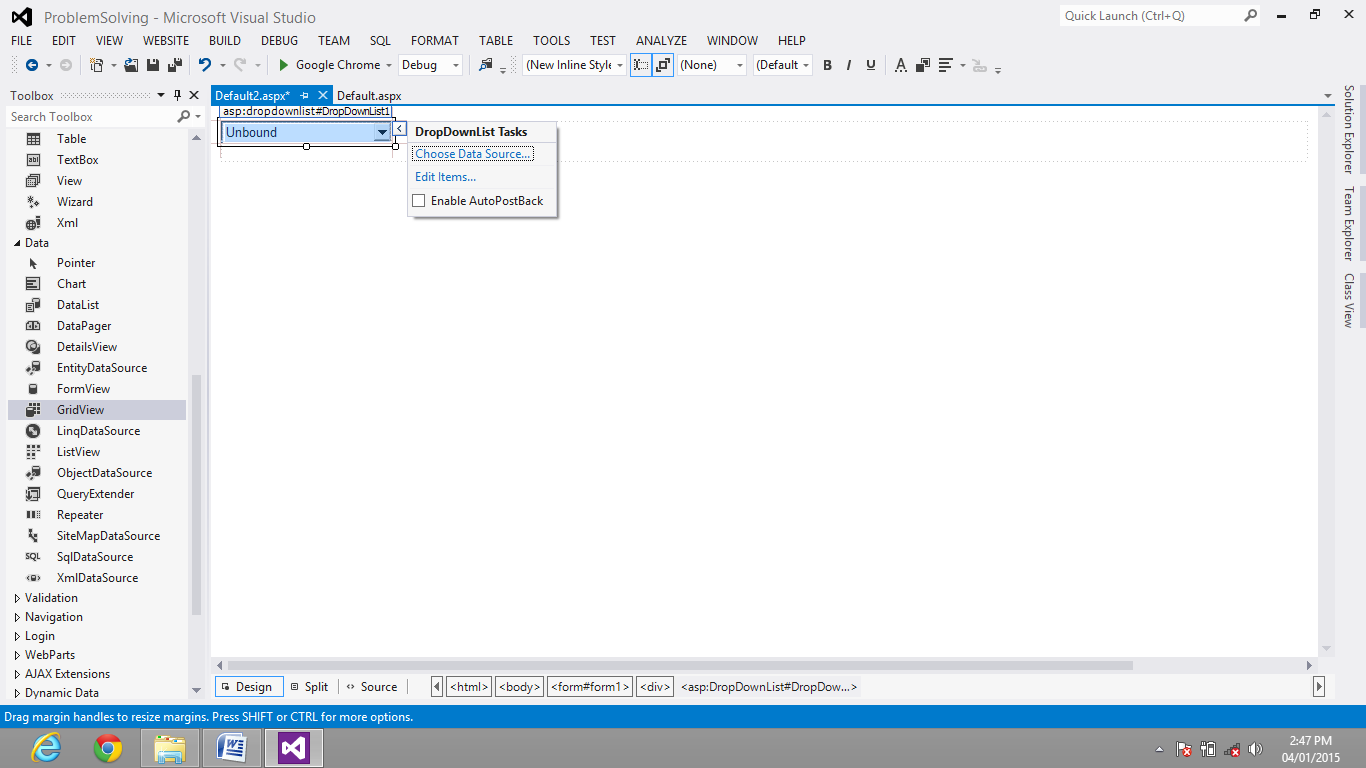
Step 4:
Select ” New DataSource” form first dropdownlist
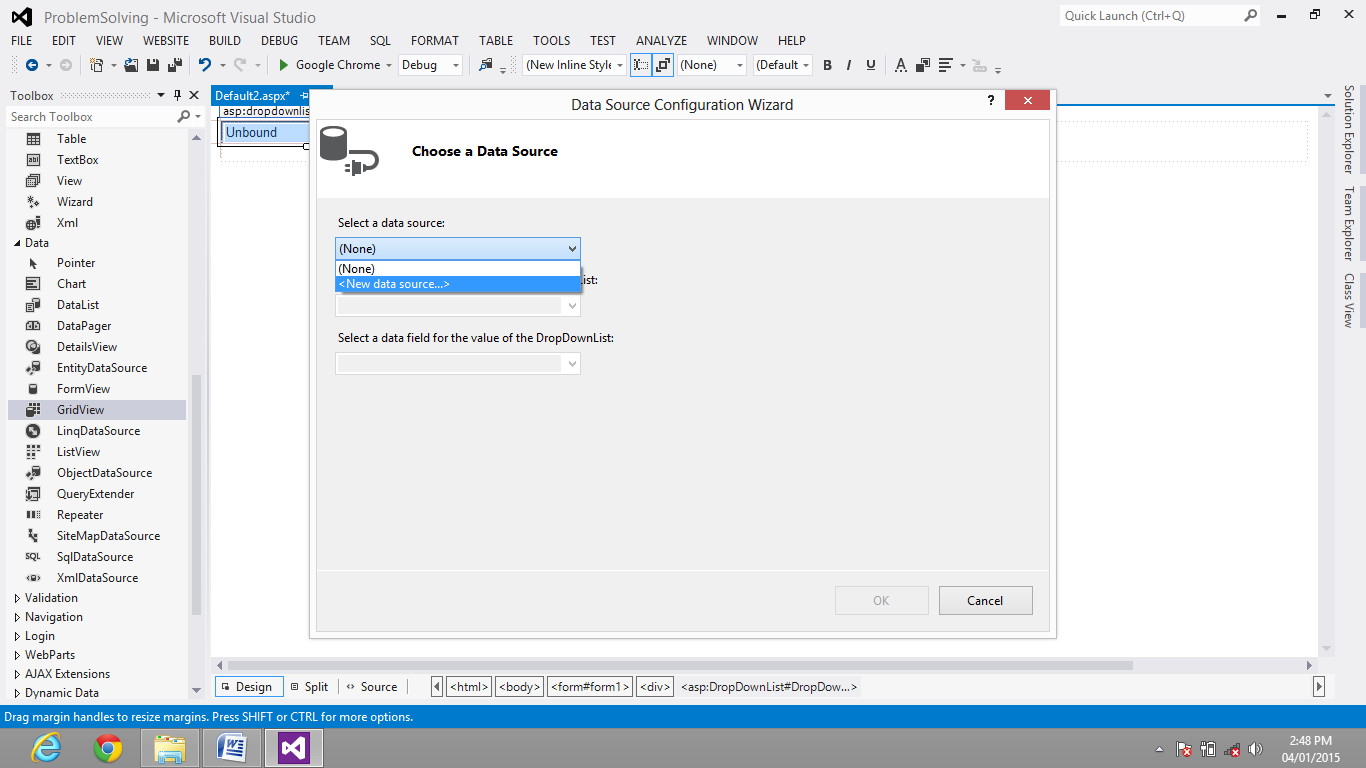
Step 5:
Choose data souce which you want to bind. I choose SQL data souce.click on OK.
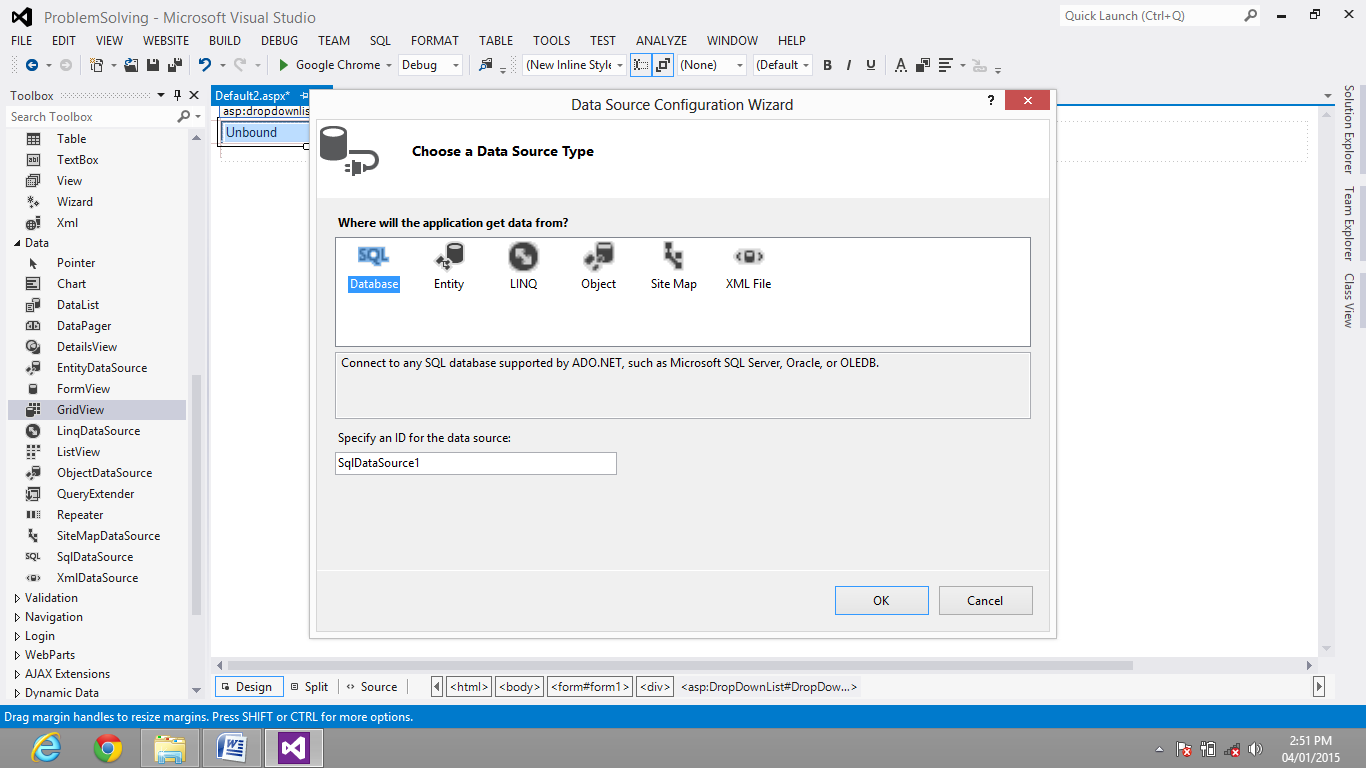
Step 6:
If you have already bind datasouce then choose in the dropdownlist otherwise Click on New Connection.I choose New Connection.
Step 7:
Enter server name and choose authentication .if server Authentication then enter UserName and Password .also select database .and for conformation of Test connection click on Test Connection. If connectin is successed it display message click on OK.again click on OK to close the windows.

Step 8:
Now display connection string .click on Next.

Step 9:
Check the connection string save in configuration file .and click on Next .
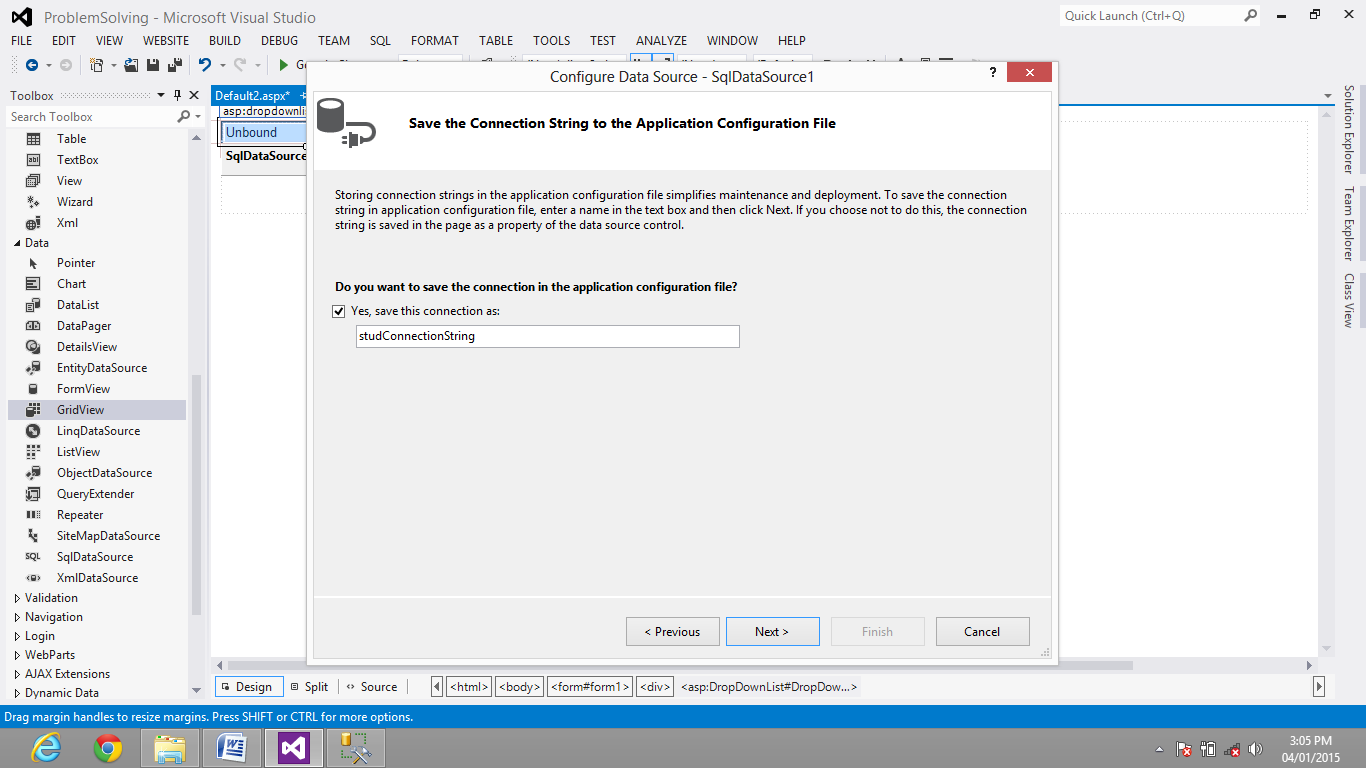
Step 10:
Here dropdownlist we are only bind to Student_id so check student_id .and click on Next.
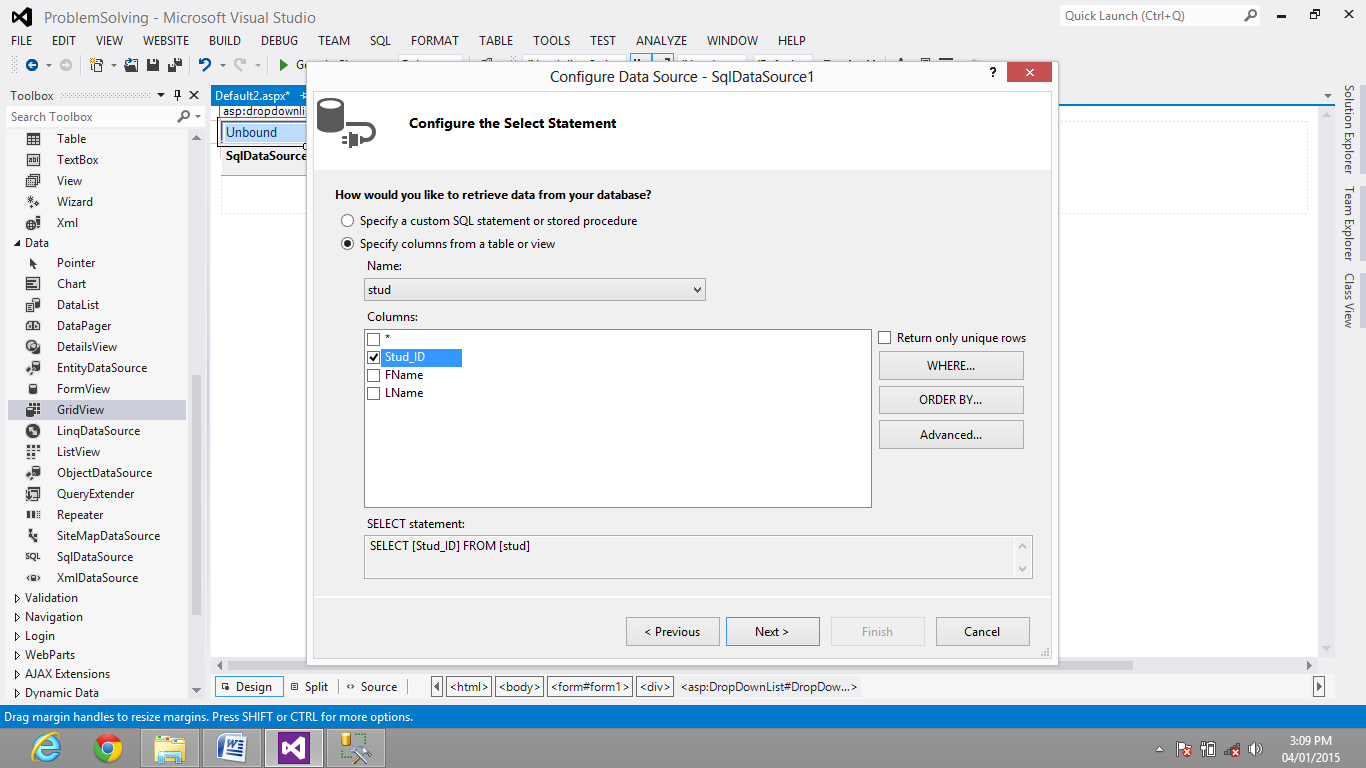
Step 11:
Click on Test Query to display avaliable student _id in database.click on finish.
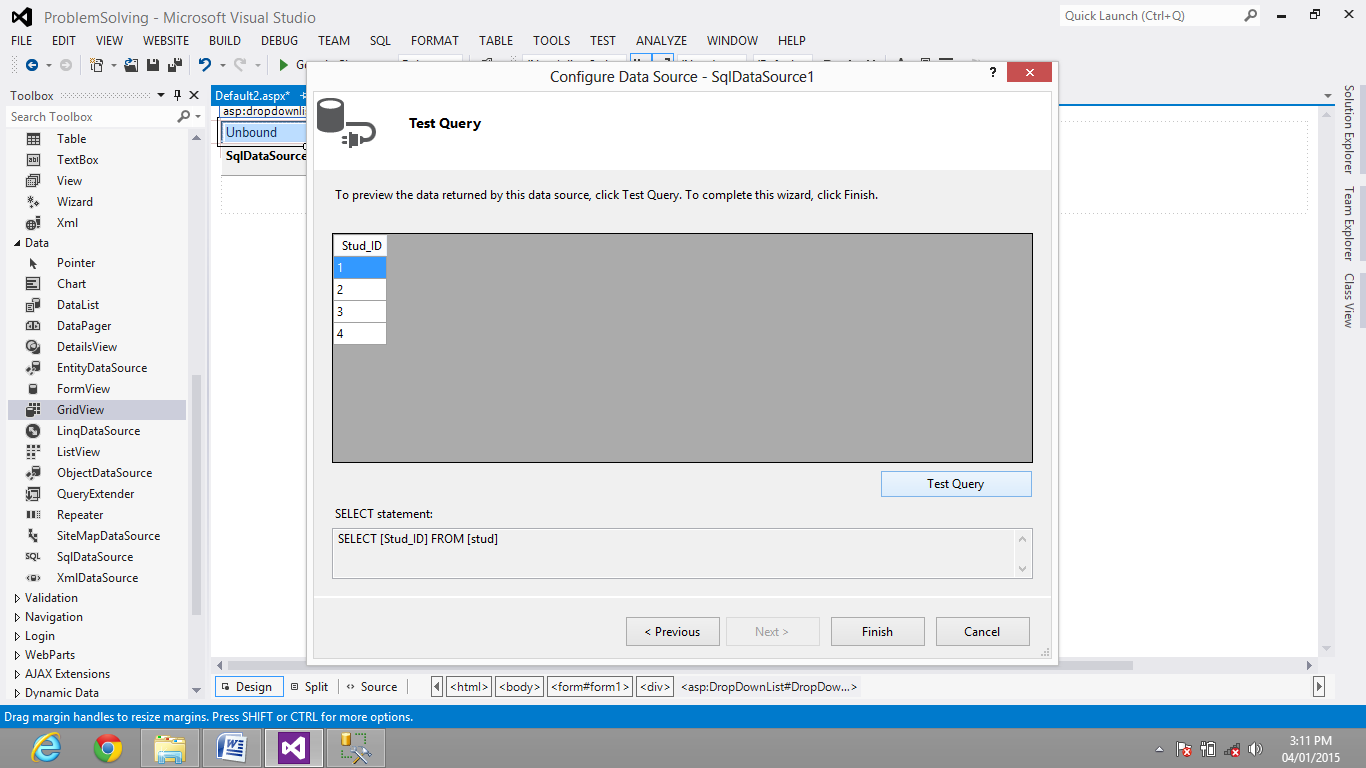
Step 12:
Finally it display all the detail which you bind to dropdownllist click on ok.

Now all the student_id are bind to the dropdownlist.
Next we need to display record as per dropdownlist value to gridview.
Step 13:
drag and drop one gridview .select “New data Souce”

Step 14:
Select SQL Datsource Type and click on OK

Step 15
Now directly choose the connection string click on Next
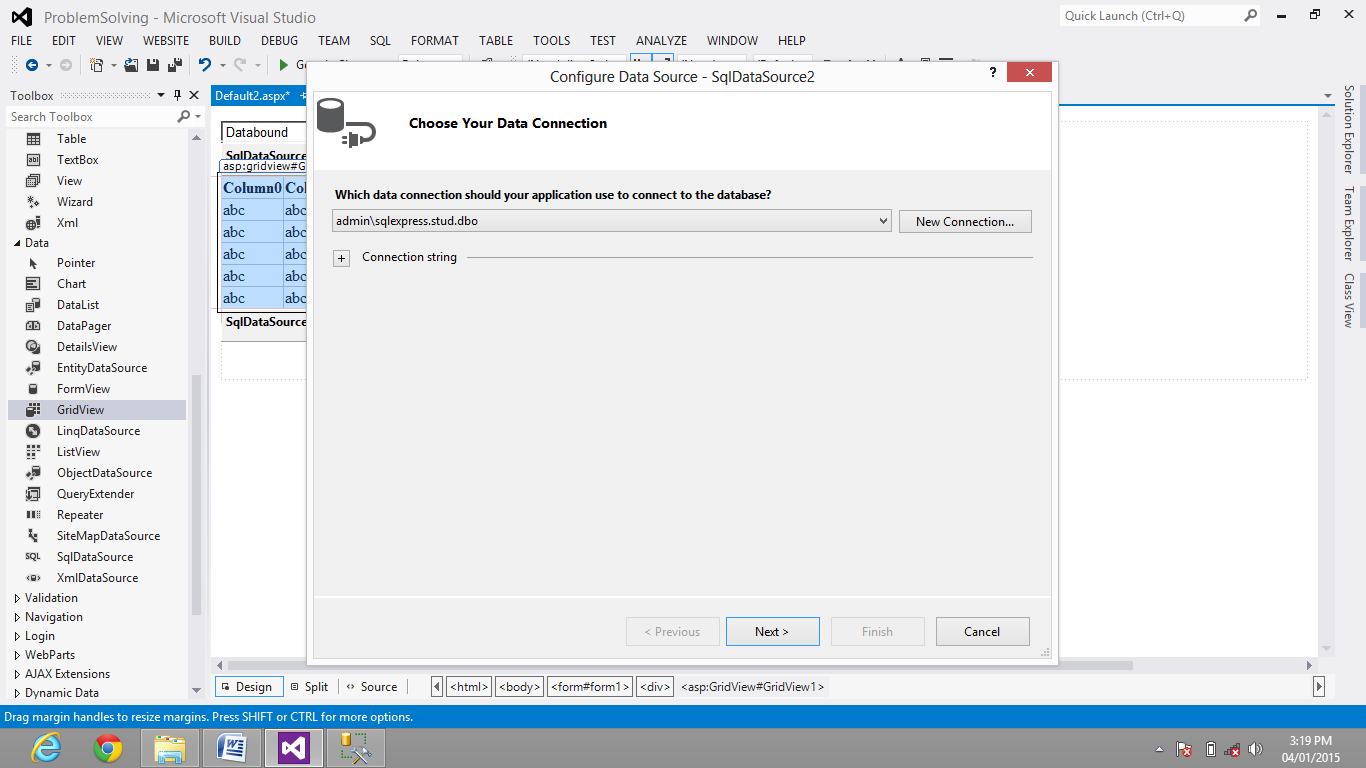
Step 16:
click on Next

Step 17:
Check * to display all record now we need to display record as per condition .click on where
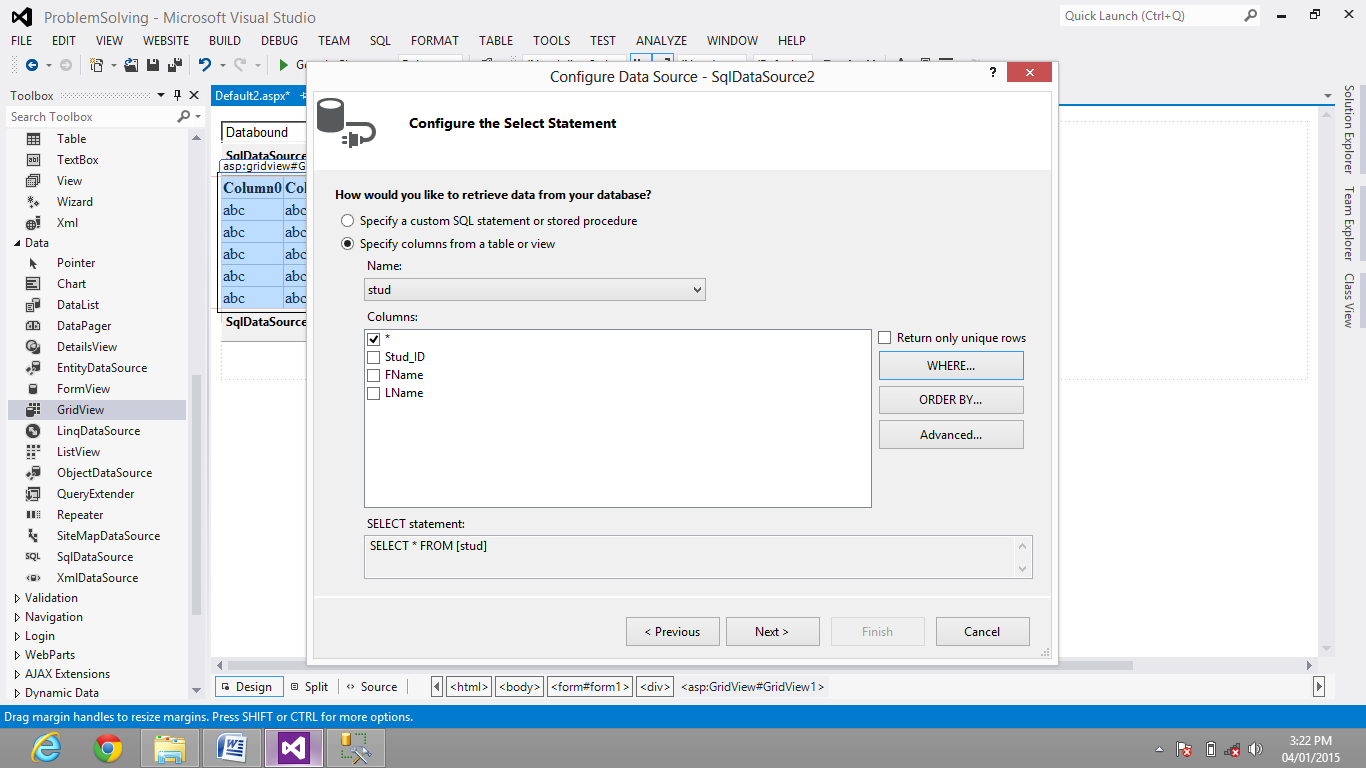
Step 18 :
Select coloum is student_id ,operator is =,and now here is Main thing here we can bind the source.you can bind source on that various ways.here we are going to bind the control.choose control ID as dropdownlist .click on Add and then OK button, 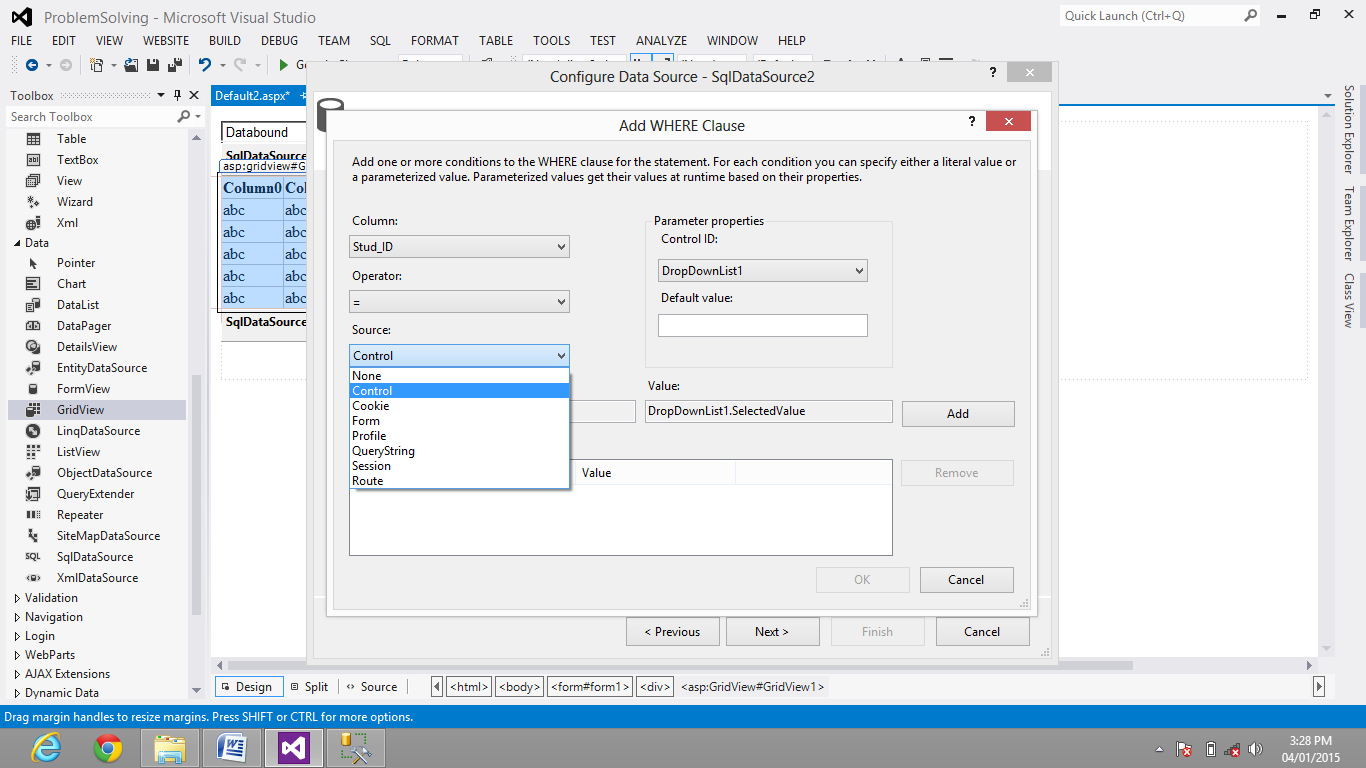
Step 19:
Now click on Test Query .aske to enter Parameter.eg I enter Student id as a parameter 1 and click ok

Step 20 :
Now he display record as per parameter which passed.Now click on Finish.

Step 21:
Now Run the webpage and check.it display details of student as per student id of dropdownlist.


Hope you like my article .


0 comments:
Post a Comment
Note: only a member of this blog may post a comment.